Menus, WiFi passwords, concert tickets: QR codes are everywhere, and no, you don't need a sketchy free app full of ads to read them.
Every modern Android scans QR codes natively in at least three ways. Here they are, fastest first.
Before you start
- An Android phone (Android 8 or newer covers almost everyone)
Step by step
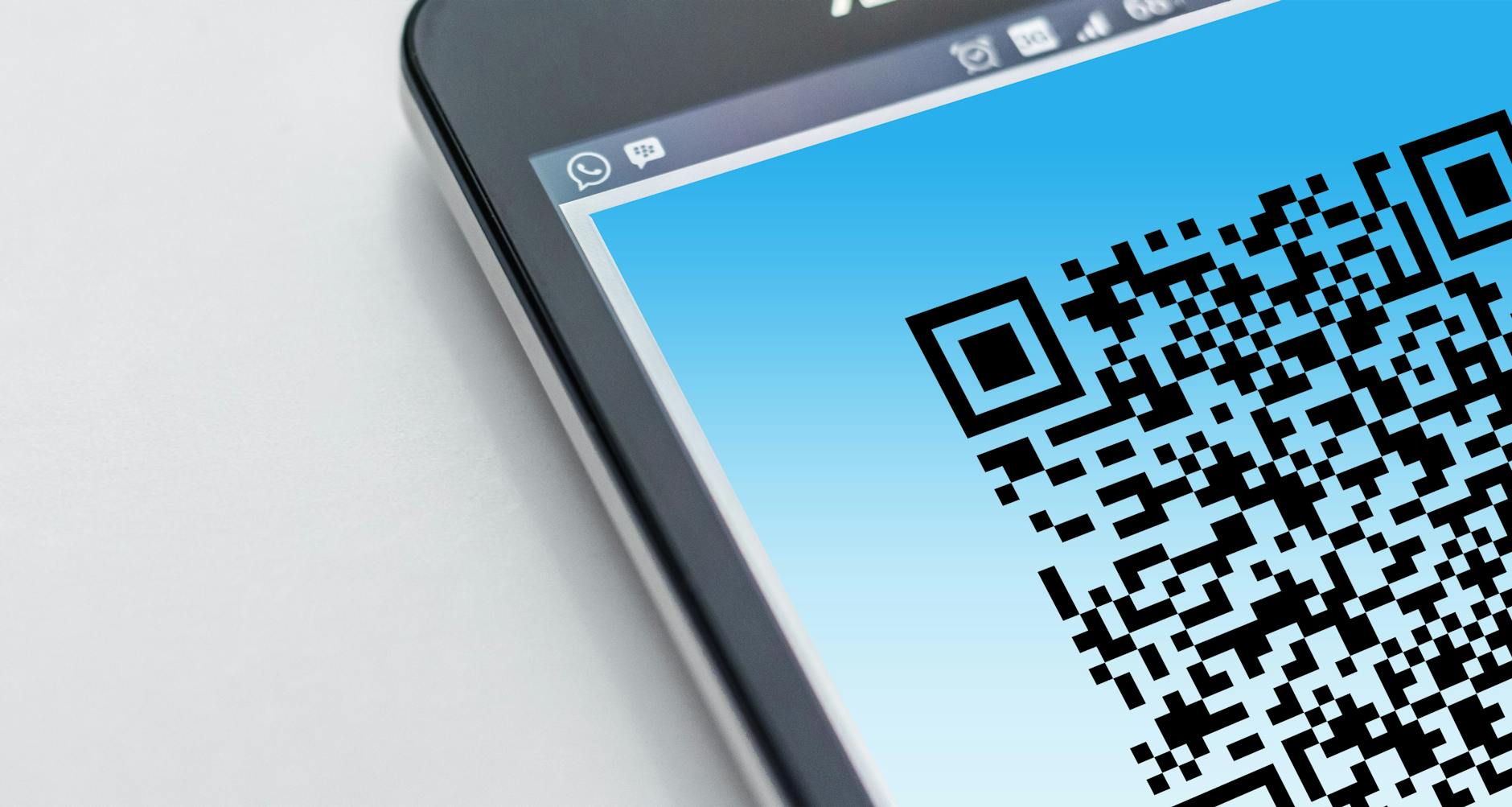
- Just point the camera. Open the normal Camera app and aim at the code like you're taking a photo. A small link banner pops up over the code: tap it. This works out of the box on nearly every modern Android.
- The quick settings scanner. Swipe down twice and look for a 'Scan QR code' tile (Samsung has it; Pixel added it too). Tap, point, done. Pin it to the first page if you scan often.
- If you don't see the tile, edit the quick settings panel and drag it in
- Samsung's tile lives under the second swipe page sometimes
- Google Lens for codes saved in your gallery. Received a QR as a screenshot? Open it in Google Photos and tap the Lens icon, or long press the home button and use Lens. It reads codes from images, no pointing required.
- WiFi QRs are the best use case. Many cafés and routers show a QR for the WiFi: scanning it joins the network directly, password typing extinct. If the camera banner doesn't offer it, the Settings, WiFi, add network screen has its own QR icon.
Good habits to keep
- Check the link preview before tapping: legit codes show a sensible address. A QR on a parking meter that isn't from the city is a classic scam pattern.
- Scanning someone's WiFi QR never reveals their password to you, it just connects. Hosts love this.
- If the camera won't focus, the code is probably too far: QRs need less perfect focus than people assume, move a little farther away.
Pitfalls worth skipping
- Random QR sticker placed over another one in public is a known fraud move: prefer codes printed on menus or screens over stickers.
- Third party scanner apps are unnecessary and many monetize through ads or data: the phone already does everything.
Questions people ask
My old Android camera won't scan. Options?
Open Google Lens from the Google app, it covers very old versions without extra installs.
Can I create my own QR codes?
Yes: Chrome on any page, Share, QR Code generates one instantly for that link.
Keep reading
- How to Free Up Storage on Android Without Deleting Your Photos
- How to Block a Number on Android (Calls, Texts and Spam)
- How to Enable Developer Options and USB Debugging on Android (Step-by-Step Guide)
Wrapping up
Camera up, banner appears, tap once. The QR era needs zero extra apps, and now your phone treats codes like first class citizens.
