Android's assistant quietly became Gemini: it reads your screen, summarizes what you're watching, and drafts messages from a floating overlay without leaving your app.
If you haven't finished the switch or only use it for weather, this guide unlocks the parts that change daily phone use.
Short version: Make Gemini the default assistant first, then learn the overlay, the whole trick. Details below.
How to do it
- Make Gemini the default assistant. Open the Gemini app (or trigger the assistant and follow the prompt to switch). Settings, Apps, Default apps, Digital assistant app shows the choice. Long-press power or 'Hey Google' then launches Gemini instead of the old assistant.
- Learn the overlay, the whole trick. Long-press power or say the wake phrase inside any app: Gemini rises as a floating panel over whatever you're doing, instead of kicking you to a separate screen. Reading an article, watching a video, mid-email: context stays put.
- Use 'Ask about this screen'. The overlay offers screen-aware actions: Summarize this page, Explain this chart, Questions about this video. On YouTube it answers with timestamps; on a long PDF it becomes the fastest skim in mobile computing. This is the feature that sells the switch.
- Extend it to your Google life. In the Gemini app, your profile, Extensions: connect Gmail, Drive, Maps, YouTube and Calendar. 'When is my flight', 'find the lease PDF in Drive and summarize it', 'what's the traffic to the airport' suddenly all work from one place.
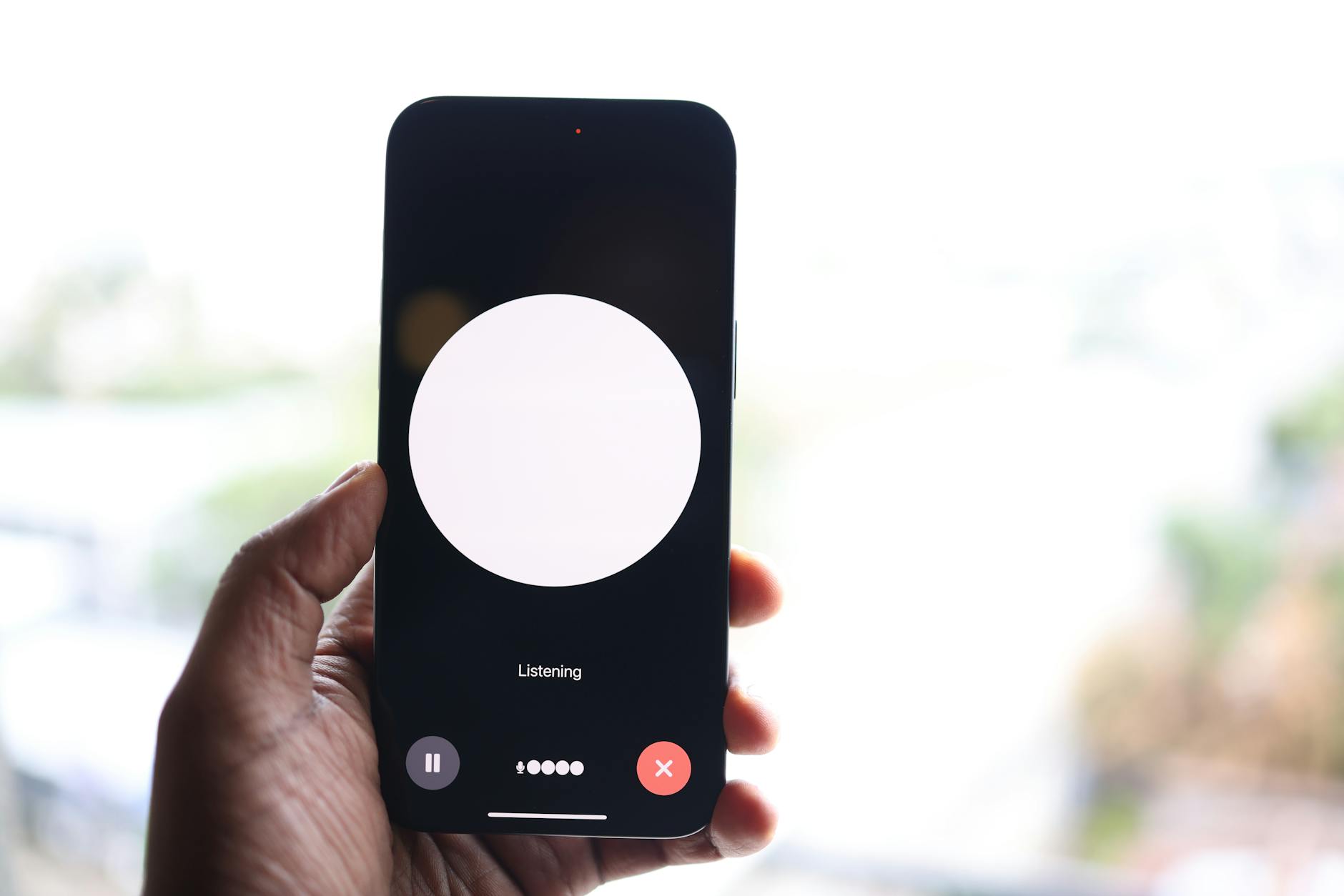
- Gemini Live for actual conversation. Tap the Live waveform button for a voice conversation you can interrupt mid-sentence, on walks it becomes a surprisingly decent radio co-host. Brainstorming out loud, practicing a presentation, or learning a topic hands-free is what it does best.
- Keep the routines the old assistant owned. Timers, smart home commands and alarm reliability still ride on the Google app's plumbing behind Gemini; if a smart bulb command misfires after switching, the Google Home app's routines fill the gap identically.
Pro tips without the attitude
- Gemini drafts messages contextually: 'reply to this WhatsApp saying I'm running ten minutes late' while the chat is open on screen.
- Circle to Search pairs beautifully: circle anything on screen, then ask Gemini a follow-up about it.
- Free tier limits exist on the fanciest models; the everyday summarizing and screen-reading powers run fine without a subscription.
Questions people ask
Can I switch back to the classic Google Assistant?
Yes: the Digital assistant app setting lets you revert at any time, and trying Gemini costs nothing but the toggle back.
Does it work offline?
Core AI answers need internet; basic device actions (calls, alarms, app opening) still work through the local plumbing when connectivity drops.

Keep reading
- Why Your Android Charges Slowly (And How to Get Full Fast-Charging Speed Back)
- How to Make a Better To-Do List for Busy Weeks at Home
- How to Wash a Backpack Without Damaging Its Fabric
Screen-aware summaries alone justify the switch; the floating-ask-anything habit finishes the job.
