Printers remain the one device class that treats plug and play as a suggestion. Windows 11 does better than its ancestors, once you know where things hide.
Updated August 09, 2026, after a fresh review, with updated visuals and links.
Add it properly, and if it plays dead, fix it with the checklist that resolves nine of ten printer dramas.
What you'll need
- A Windows 11 PC
- Your printer powered on and connected (WiFi or USB)

The how to part
1. Add it through Settings
Settings, Bluetooth and devices, Printers and scanners, Add device. Windows searches the network and USB: click your printer when it appears and it installs itself, driver included, in about a minute.
2. WiFi printers must be on the SAME network
The number one cause of 'printer not found': the printer joined a different band or network (many cheap printers only see 2.4 GHz). Connect the printer to your same WiFi from its control panel first.
3. Not found? Add it manually
On the same page, 'Add manually' lets you enter the printer's IP address (its control panel or router device list shows it). Manual IP adds bypass flaky discovery entirely.
- Printing a network config page from the printer shows its IP
- A reserved IP in the router stops it changing later
4. Skip manufacturer bloat where possible
Windows' included drivers handle printing and scanning for most models. The 300 MB manufacturer suite adds ink shopping links more than features: install only if you need its specific tools.
5. Fix: print spooler restart (magic cure)
Jobs stuck 'in queue'? Press Windows + R, type services.msc, find Print Spooler, right click, Restart. This tiny service holds every print job and its tantrums cause half of all 'printer is dead' moments.
6. Fix: remove and re add
When nothing works: Printers and scanners, your printer, Remove. Restart the PC, add it again fresh. A clean driver marriage fixes what a thousand clicking sessions didn't.
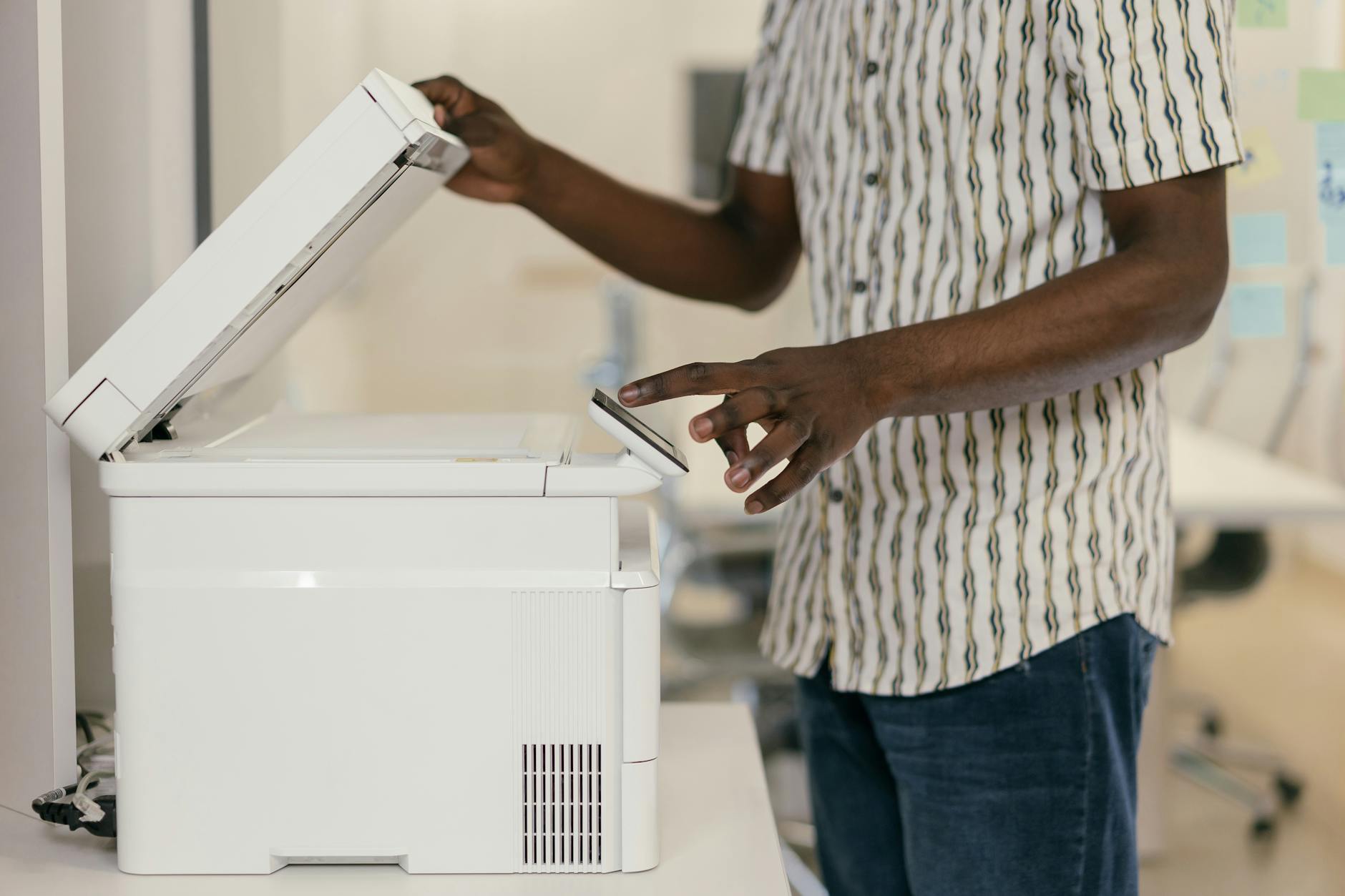
Tips that actually help
- Set it as default (same page) so Ctrl + P stops interrogating you.
- Print a test page after setup: success now beats discovery during a deadline.
- Windows Update, Optional updates occasionally carries printer drivers worth grabbing for flaky models.
Keep reading
- How to Enable 'God Mode' in Windows 11: One Folder With Every Setting
- How to Recover Deleted Files in Windows 11 (Before You Panic, Check These 5 Places)
- How to Fix Blue Screen Errors in Windows 11 (Without Just Reinstalling Everything)
Same network, manual IP, spooler restart, clean re add. Printers stay cantankerous, but now they're cantankerous and obedient.
