Every Android looks identical out of the box, which is odd for the most customizable phone platform on Earth. Thirty minutes of setup turns the home screen into a dashboard built around your actual day.
Updated August 15, 2026, after a fresh review, with updated visuals and links.
Widgets, icon packs, grid tweaks, and the launchers that go further: here's the full customization path from gentle to profound.
Short version: Fix the grid and basics first first, then deploy widgets that earn their space. Details below.
Here's how it works
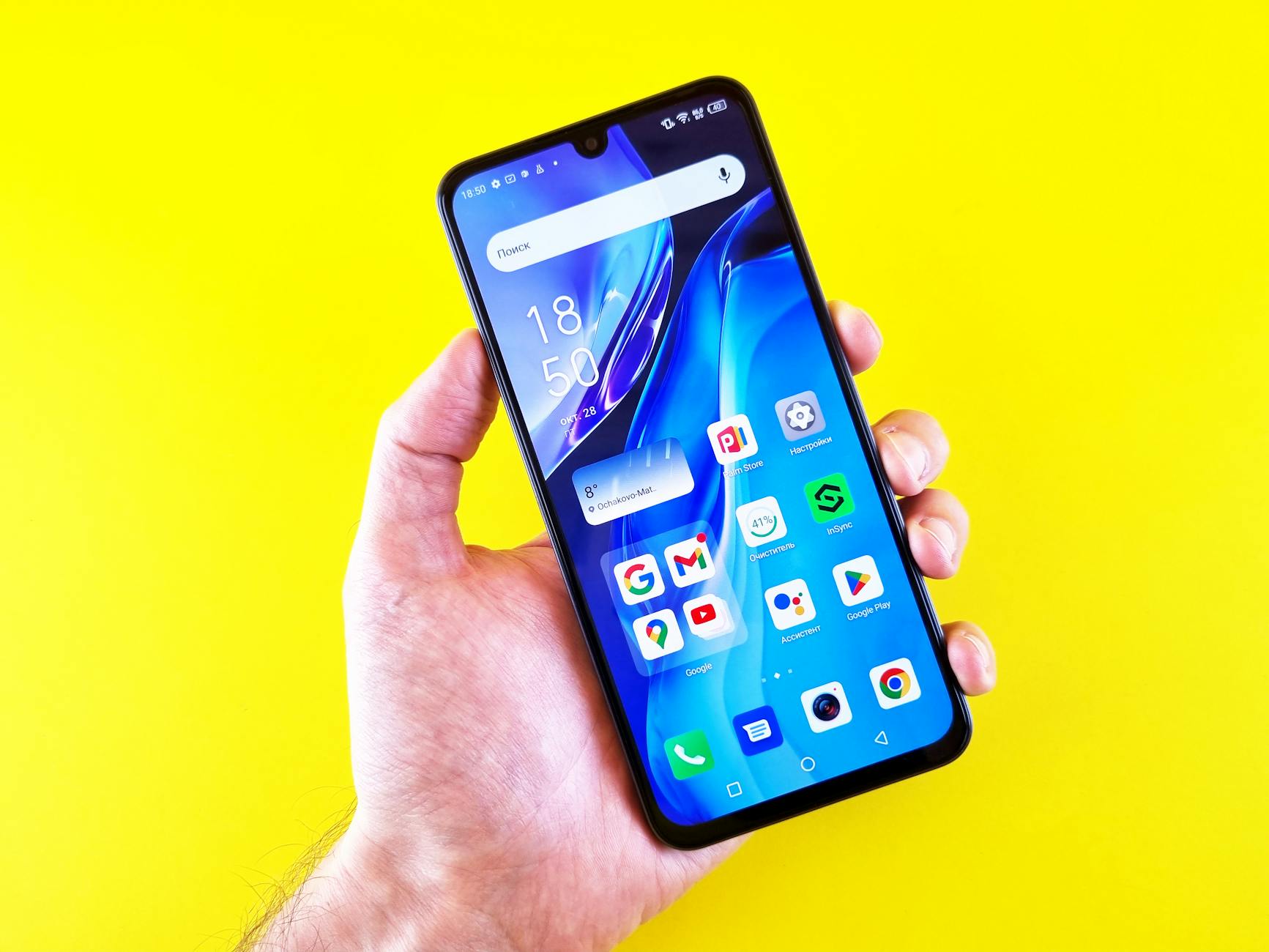
- Fix the grid and basics first. Long-press empty home space, Settings or the pencil: raise the app grid (5x6 fits most flags), turn off 'add new apps to home screen' (the clutter faucet), and set your wallpaper. These three toggles decide how everything else behaves.
- Deploy widgets that earn their space. Long-press, Widgets: a weather strip, your next-three-calendar-events list, and one music or battery widget cover 90 percent of glances. Widgets cost battery less than repeatedly opening apps; judge each by 'do I open this app less now?'
- Build one folder per activity, not category. Folders named by what you're doing beat app-type piles: 'Morning' (news, weather, transit), 'Money' (bank, budget), 'Out' (maps, ride apps, camera). Your thumb learns contexts, and the mental search for icons disappears.
- Theme the icons (optional rabbit hole). Samsung and Pixel both offer themed icons that tint compatible apps to your wallpaper palette; full icon packs from the Play Store go further through any launcher that supports them. Coherent icons are the single biggest visual upgrade available.
- Try a launcher when you want everything. Nova, Lawnchair and Niagara replace the home screen wholesale: gesture shortcuts (swipe up opens calendar), custom everything, minimalist lists instead of grids. Install, experiment free for a weekend, and Android never confiscates the exit, default apps setting returns you home.
- End with the five-minute weekly habit. Every week one app earns eviction from page one. The home screen is prime real estate: what lives there programs your attention, so curate it like nutrition, not like storage.
Good habits to keep
- At a Glance (Pixel) or the equivalents show flight gates and timers automatically before you ask: keep it fed with calendar data.
- One-handed mode plus a bottom-weighted layout matters on large phones: important stuff belongs in thumb territory.
- Backup your launcher settings (Nova exports them) before switching phones, perfection transfers in one file.
Quick answers
Do launchers slow the phone down?
Reputable launchers run as light as the stock one and often lighter; they only replace the home screen, not the system. Battery impact is negligible.
Can I hide apps without uninstalling?
Yes: most phones and launchers include hidden-apps or private-space features, tucking rarely used or sensitive apps out of the drawer while staying installed.
Keep reading
- How to Set Up Parental Controls on Android (Family Link, the Complete Guide)
- Trip Fuel Cost Calculator: Gas, Distance and Split (Free Tool)
- How to Tell If Something Was Written by AI (And Why Detectors Get It Wrong)
Grid, widgets, activity folders, themed icons: your phone goes from everyone's phone to unmistakably yours.
