Some games are just better with a controller: racing, sports, fighting, anything with sofa energy. Windows happily accepts both major controllers.
Updated August 09, 2026, after a fresh review, with updated visuals and links.
Connection takes two minutes with cable or Bluetooth. Here's every method, plus the fixes when Windows pretends not to see it.

Get this ready first
- Your controller (Xbox or PlayStation)
- A PC with Bluetooth or a USB cable
The how to part
- The foolproof method: plug the cable. USB-C into the controller, USB into the PC: Windows 10 and 11 recognize both Xbox and PlayStation controllers instantly, no drivers to hunt. Wired is also zero latency, the competitive choice regardless.
- Xbox controller via Bluetooth. Hold the pairing button on the controller's top until the Xbox logo flashes rapidly. PC: Settings, Bluetooth and devices, Add device, Bluetooth, pick Xbox Wireless Controller. Logo goes solid: paired.
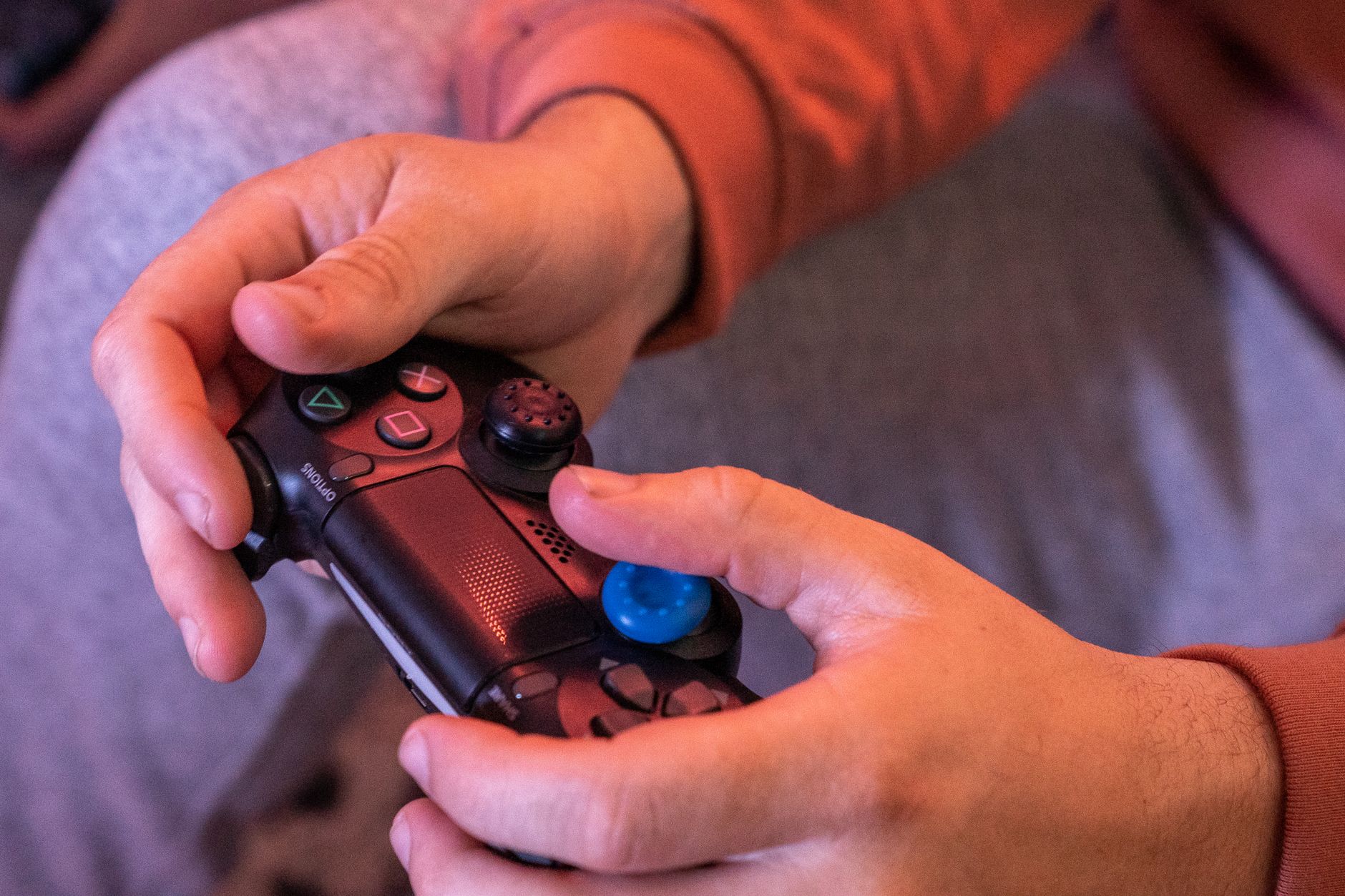
- PlayStation controller via Bluetooth. Hold the PS button and Create/Share button together until the light bar strobes. Same Windows add-device flow: it appears as Wireless Controller. Solid white glow when connected.
- Confirm games see it. Open a game's settings or Windows' own joy.cpl (Windows + R, type joy.cpl): buttons should register there. Steam, Xbox app games and most launchers auto map everything, with Xbox controllers getting native button labels in nearly every title.
- PlayStation on PC: the Steam advantage. Steam has PlayStation controller support built in (Steam, Settings, Controller, enable PlayStation Configuration Support): it translates the DualSense so even games without native support see an Xbox style layout, gyro included as a bonus aiming tool.
- When it won't connect or keeps dropping. Update controller firmware via the Xbox Accessories app (Microsoft Store) or a PlayStation console; charge the battery above critical; remove and re-pair (Bluetooth, device, Remove) after big Windows updates that scramble pairings. USB Bluetooth dongles fix motherboards with flaky built in radios for ten dollars.
Small tweaks, big difference
- Xbox wireless adapter (the official USB dongle) connects up to 8 controllers with better latency than Bluetooth, the couch party upgrade.
- Keep one cable in the desk drawer permanently: when Bluetooth acts stubborn, wired always works and charges while you play.
- DualSense adaptive triggers work in a handful of PC games natively now, worth it for the titles that support the feature's magic.
Common mistakes, and how to dodge them
- Very old Xbox One controllers (pre 2016 One S) lack Bluetooth: those work wired or with the wireless adapter only, check for the plastic seam around the Xbox button to ID your model.
- Audio through the controller's headphone jack doesn't work over Bluetooth on Windows: wired or on-board PC headphone jacks for voice chat.
Quick answers
Switch Pro controller too?
Yes: Bluetooth pairing via its sync button, works in Steam with Nintendo layout support enabled, decent third party support elsewhere.
Input lag better wired or Bluetooth?
Wired is measurable-leader territory; Bluetooth on modern hardware is good enough that only fighting game frame counters truly care.
Keep reading
- How to Fix Lag: Lower Your Ping for Online Gaming (What Actually Works)
- How to Refund a Game on Steam (The 2-Hour Rule and Every Exception)
- How to Use AI to Summarize Long Documents and PDFs
The short version
Cable for certainty, pairing buttons for freedom, Steam translating the PlayStation side. The console experience, minus the console, now lives on your PC.
