Four thousand photos in your pocket and a computer that wants them: the transfer question sounds trivial until cables fail, cloud quotas fill, and 'which folder are they in?' becomes a lifestyle.
Updated August 12, 2026, after a fresh review, with updated visuals and links.
Here's every working method ranked by real-world speed, from bulk library moves to 'just this one picture to my laptop' moments.
The fast version
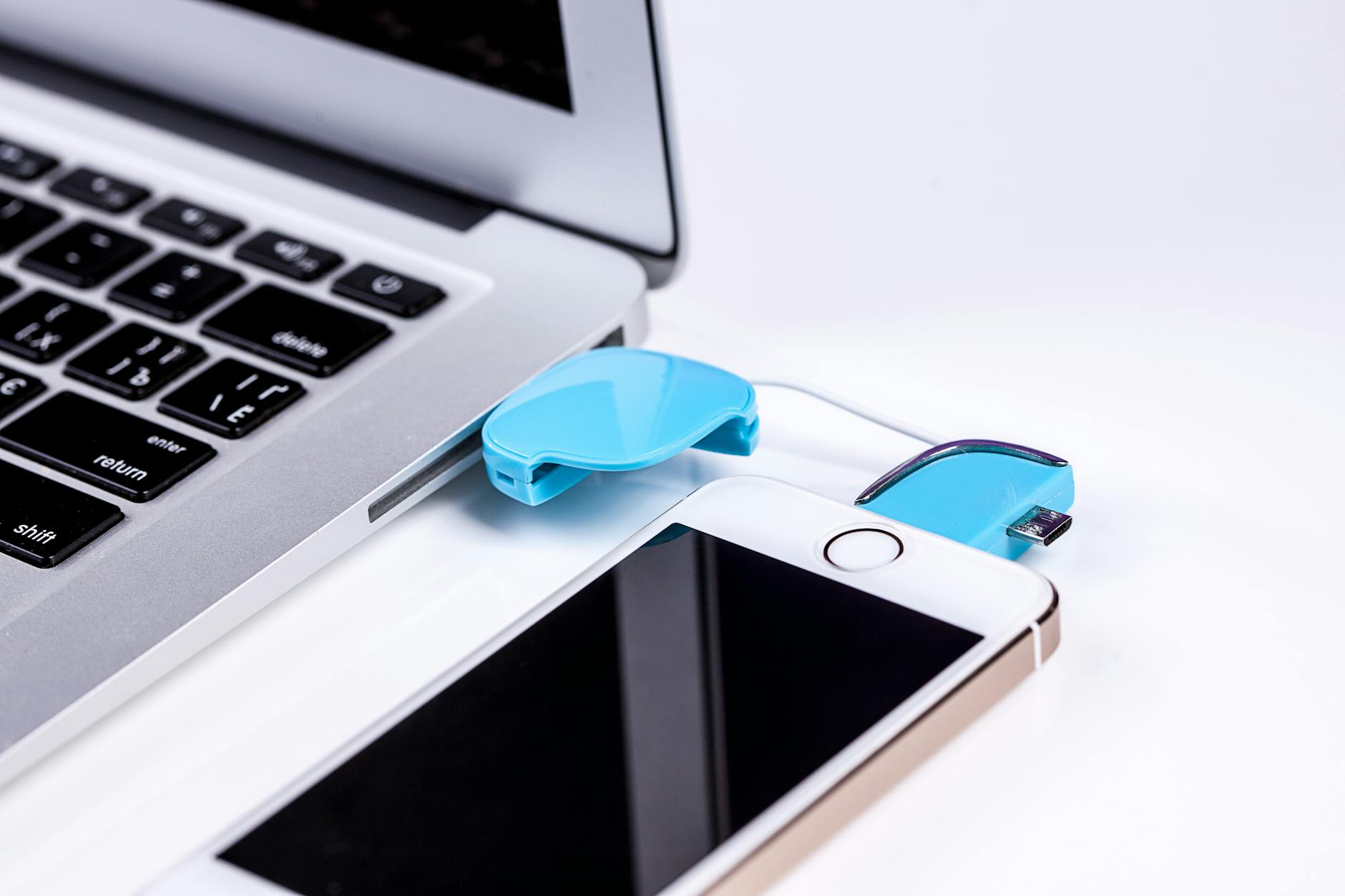
- The cable: unbeatable for bulk. USB cable, trust the computer prompt, and the phone appears as storage: iPhone via the Apple Devices app, iTunes legacy, or Mac's Photos and Image Capture; Android via straightforward file explorer (set USB mode to File Transfer on the phone's notification). Full libraries copy at cable speed, everything else on this list loses to physics.
- Cloud sync: the automatic conveyor. Google Photos, iCloud, OneDrive: enable backup on the phone, then photos appear on the computer through each service's app or web download. Zero cables, but quota limits and upload days for big libraries, best as continuous routine rather than rescue operation.
- The local wireless heroes. Nearby Share (Android to Windows), AirDrop (Apple ecosystem only), and Snapdrop-style web tools send photos over local WiFi at solid speeds with no accounts: the right answer for 'these thirty photos now'. Both devices on the same WiFi, share sheet, pick the computer's name.
The thorough version
- Messaging yourself: the guilty classic. Email attachments and WhatsApp-to-self work anywhere with zero setup but compress images and choke past twenty items: legitimate for three photos, self-punishment for three hundred. Know the method's ceiling before the vacation library test.
- SD card readers for camera refugees. Dedicated cameras and drone cards: an SD reader on the computer bypasses camera cables entirely and transfers at card speed. Modern phones skip this, but anyone with a real camera learns this method the day a cable fails.
- Organize at the destination this once. The transfer moment is the filing moment: folders by year and event (2026, Costa Rica), names that humans understand. Libraries organized at import stay findable forever; 'New folder (7)' archaeology ends careers in family photo management.
Pitfalls worth skipping
- Moving instead of copying before verification: delete from the phone only after the computer copy opens and a second backup exists, the rule that spares every tears-story.
- Forgetting hidden folders: screenshots, WhatsApp saves and downloads live outside the main camera roll, complete archives check the whole DCIM and Pictures structure.
Good habits to keep
- HEIC confusion solved: iPhones shooting HEIC can convert-on-transfer (Settings, Photos, Automatic transfer mode) for Windows compatibility, or keep originals plus free codecs.
- Cable speed secrets: the charging-only cable can't transfer anything, data cables matter, swap first when a connection won't appear.
- Regular small syncs beat heroic annual migrations: monthly cable or continuous cloud prevents the 40-GB emergency session.
FAQ
Why does my computer not see the phone at all?
In order: wake and open the phone, accept the trust prompt, switch the phone's USB mode to File Transfer or MTP, change the cable (charging-only cables abound), then suspect drivers on older Windows machines.
What's fastest for a huge library?
Cable by far: local wireless methods run an order of magnitude slower, clouds take the upload duration, cables finish libraries over a coffee.
Keep reading
- How to Share Photos on iPhone With a Shared Album (The Right Way, Storage-Free)
- Google Photos: Free Up Space, Find Anything, and the Sharing Tricks You Missed
- How to Edit Photos Like a Pro With Free Tools (No Photoshop Subscription)
That covers it
Cable for libraries, wireless tricks for handfuls, cloud for continuity, and name the folders like someone who plans to find things.
